Modern Microsoft/Outlook.com accounts are typically OAuth2-only and don't accept a
manually configured SMTP username/password — check your account's security settings
if the steps below don't apply. This guide covers classic Outlook accounts that
still support standard SMTP authentication.
- Open File → Account Settings → Account Settings…
- Select your account and click Change, then More Settings → Outgoing Server.
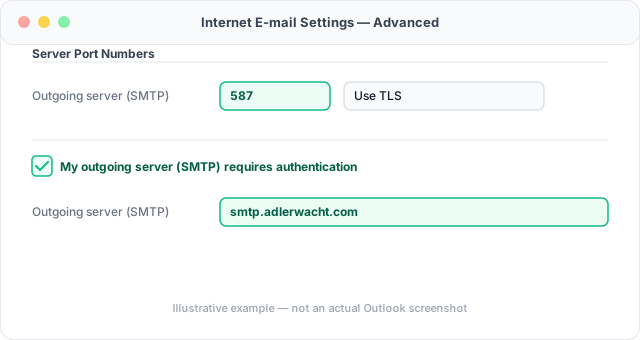
- Enable My outgoing server (SMTP) requires authentication, and use the same settings as your incoming server.
- On the Advanced tab, enter the gateway's inbound server settings — server address and port — and set encryption to match the port (STARTTLS for 587, SSL/TLS for 465).
- Save, then send a test message to confirm delivery.